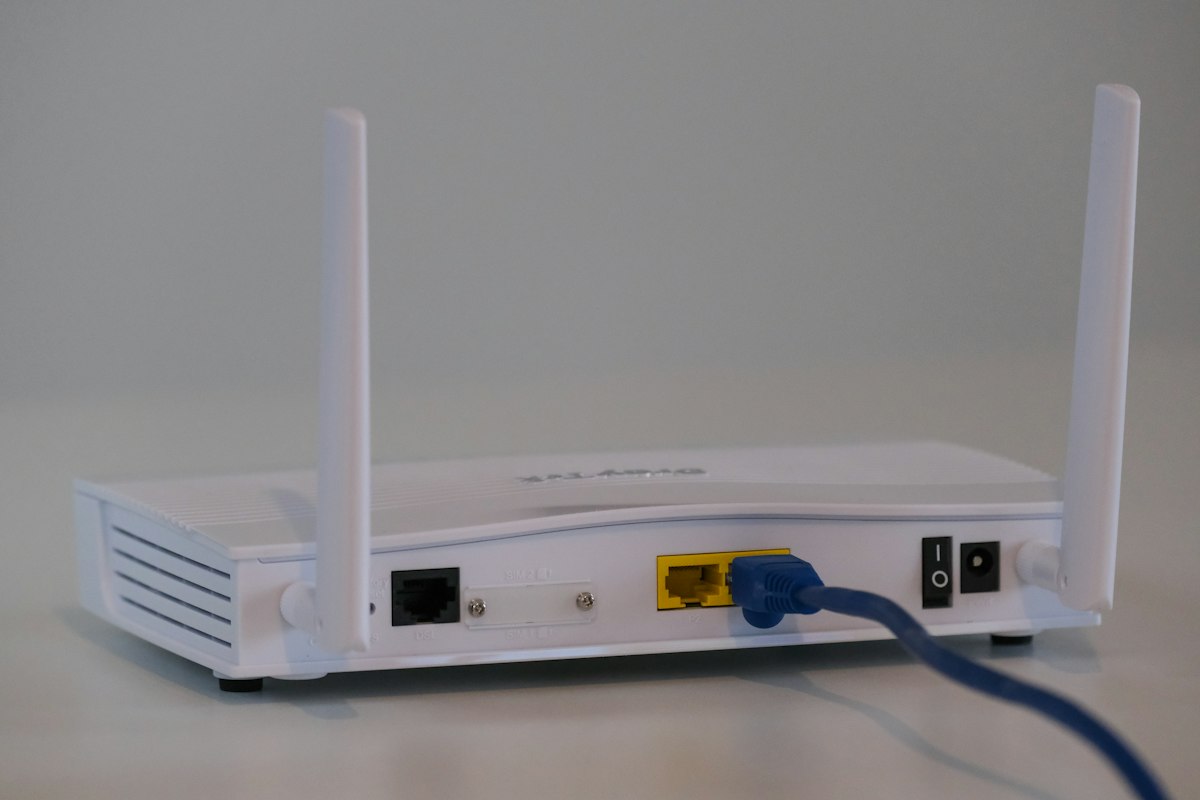
Slow Wi-Fi is one of the most frustrating modern problems. You are paying for a fast internet plan, yet pages load slowly, videos buffer, and video calls freeze. Before blaming your ISP, the issue is almost always within your home network. Here are ten proven, actionable fixes to speed up your Wi-Fi today.
1. Restart Your Router and Modem
This is the simplest fix and works surprisingly often. Routers accumulate small errors in memory over time, and a restart clears these and refreshes your connection to the ISP. Power off both your modem and router, wait 30 seconds, then power the modem on first and wait for it to connect before powering on the router. Run a speed test before and after to see the improvement.
2. Move Your Router to a Better Location
Router placement is one of the biggest factors in Wi-Fi performance. Your router should be placed in a central, open location — ideally on a shelf at mid-height rather than on the floor or inside a cabinet. Keep it away from thick concrete or brick walls, metal objects, microwave ovens, and cordless phone bases, all of which absorb or reflect radio waves. The goal is to minimize the distance and obstacles between the router and your most-used devices.
3. Switch to the 5 GHz Band
Most modern routers broadcast two bands: 2.4 GHz and 5 GHz. The 2.4 GHz band has longer range but lower maximum speed and is far more congested because it is used by almost every Wi-Fi device, Bluetooth device, and microwave oven. The 5 GHz band offers much faster speeds with less interference, though its range is shorter. Connect your laptops, phones, and streaming devices to 5 GHz for better performance when you are in the same room or nearby.
4. Change Your Wi-Fi Channel
Within each band, Wi-Fi broadcasts on specific channels. In crowded apartments or neighborhoods, many routers compete on the same default channels, causing congestion. Use a free Wi-Fi analyzer app to see which channels nearby networks are using, and switch to a less crowded one in your router settings. For 2.4 GHz, channels 1, 6, and 11 are the only non-overlapping options. For 5 GHz, there are many more channel choices with less competition.
5. Update Your Router Firmware
Router manufacturers regularly release firmware updates that improve performance, security, and stability. Log into your router’s admin panel (usually at 192.168.1.1 or 192.168.0.1) and check for firmware updates under the administration or advanced settings menu. Many modern routers update automatically, but it is worth verifying.
6. Reduce the Number of Connected Devices
Every device connected to your Wi-Fi consumes a portion of available bandwidth, even when idle. Smartphones regularly sync email and notifications, smart TVs download updates, and IoT devices send heartbeat signals. Disconnect devices you are not actively using and set smart TVs and game consoles to update overnight rather than during peak usage hours.
7. Use Quality of Service (QoS) Settings
Most modern routers include a Quality of Service feature that allows you to prioritize certain types of traffic or specific devices. You can configure your router to always give priority bandwidth to your work laptop or your streaming device, ensuring a smooth experience even when other devices are active on the network.
8. Upgrade to a Wi-Fi 6 Router
If your router is more than three to four years old, upgrading to a Wi-Fi 6 (802.11ax) router can significantly improve your network performance, especially in homes with many connected devices. Wi-Fi 6 introduces technologies like OFDMA and MU-MIMO that allow the router to communicate with multiple devices simultaneously rather than one at a time, reducing congestion and improving efficiency.
9. Use a Mesh Network System
If your home is large or has multiple floors, a single router may not be able to provide strong signal everywhere. A mesh Wi-Fi system places multiple access points throughout your home that work together as a single seamless network. Modern mesh systems like Google Nest WiFi, Eero, or Netgear Orbi use a dedicated backhaul channel between nodes to maintain high throughput even in far corners of your home.
10. Consider a Powerline or MoCA Adapter
For devices that need a reliable, wired-like connection but cannot be reached with an Ethernet cable, Powerline adapters use your home’s existing electrical wiring to carry network data, while MoCA adapters use coaxial cable. Both solutions provide much more stable and faster speeds than Wi-Fi for devices like smart TVs, gaming consoles, or desktop computers that are far from the router.